From installer to your first quote
Run the installer on your own server or a spare PC (Windows or Linux), then open the setup wizard in your browser.
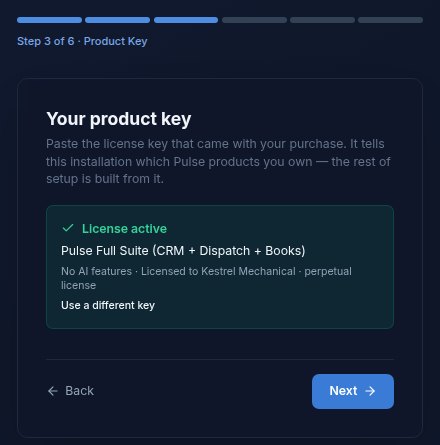
Six screens, and your license activates on the spot
Welcome, your company details, your product key, your books, your admin login, and a review. The key tells Pulse which modules you bought, so the rest of the wizard only asks about what you own.
- The license activates offline: no license server, no account to create
- Pick cash or accrual reporting in plain English, and change it later if you need to
- Setup signs you straight in when it finishes
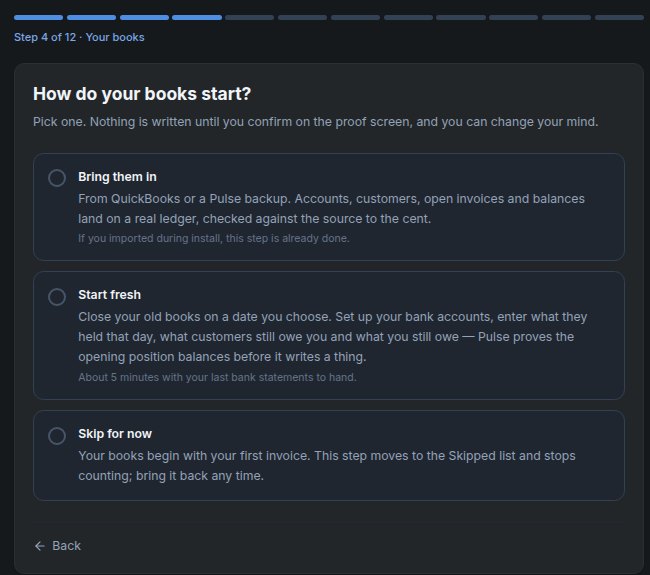
Every chapter: bring it in, start fresh, or skip
After you sign in, the wizard carries on, one chapter at a time. Each one offers the same three choices, so nobody is forced through a step they don’t need.
Skipped chapters stop counting against you and can be brought back any time. The checklist lives under Settings → Onboarding, and every import can be run again safely.
Make it yours
Logo, quote and invoice numbering, terms, brand colour.
Every editionYour lists & categories
Pipeline stages, lead sources, payment terms, pre-ticked.
Every editionYour workplace
Offices, bookable rooms, your people, assets, handbooks.
Pulse HQYour books
QuickBooks import or a fresh start, proven to the cent.
BooksCustomers
Companies and contacts from a spreadsheet or old CRM.
CRMProducts & services
A pricelist upload, or your first few items by hand.
CRMYour first deal & quote
A real quote, with your numbering, ready to send.
CRMYour customers’ equipment
Units you service, with past service history.
DispatchYour team
A staff roster, departments, and who gets a sign-in.
Every editionSending & payments
Outgoing email, and card payments on Books editions.
Every editionSales collateral
Spec sheets and brochures your reps send to customers.
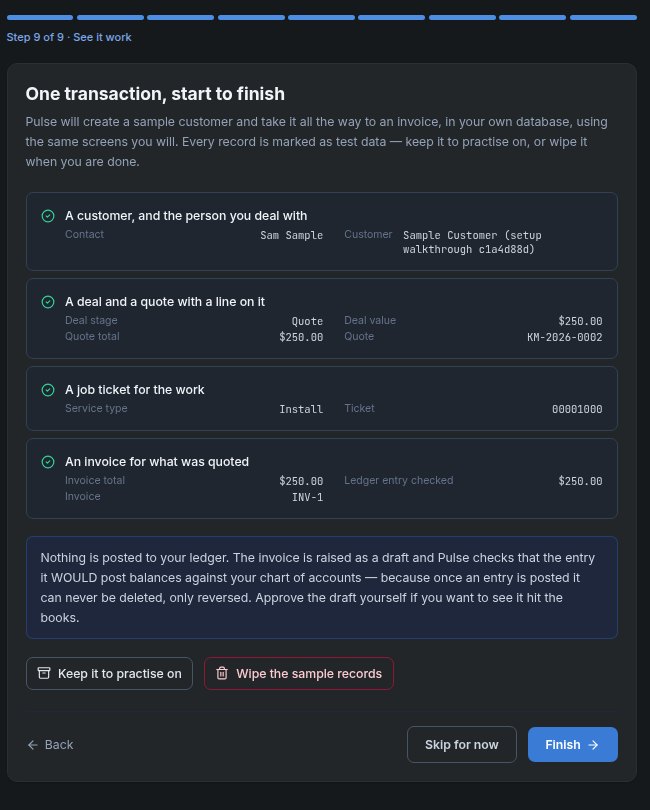
CRMSee it work
One sample job taken from quote to invoice.
Every editionYou only see the chapters for the modules on your license.
Your books tie out, or nothing is saved
This is the step people worry about, so Pulse doesn’t take its own word for it. It rehearses the opening entry on your real ledger, rolls it back, and shows you the proof: the entry balances, your open invoices match Accounts Receivable, and your unpaid bills match Accounts Payable. If a figure is off by a cent, you see the difference instead of a checkmark, and the books won’t open until it’s fixed.
- QuickBooks Desktop: the Pulse QB Exporter brings across your accounts, customers, vendors, items, balances, and open invoices and bills. If QuickBooks is on the same Windows computer, Pulse finds it and imports directly.
- QuickBooks Online, Xero, FreshBooks or Wave: upload a trial balance and Pulse fills in your bank accounts and balances for you. Then add your open invoices and unpaid bills from the reports those systems already print.
- Old sales and expenses stay in your old books as the archive. Pulse opens on your start date with the exact balances.
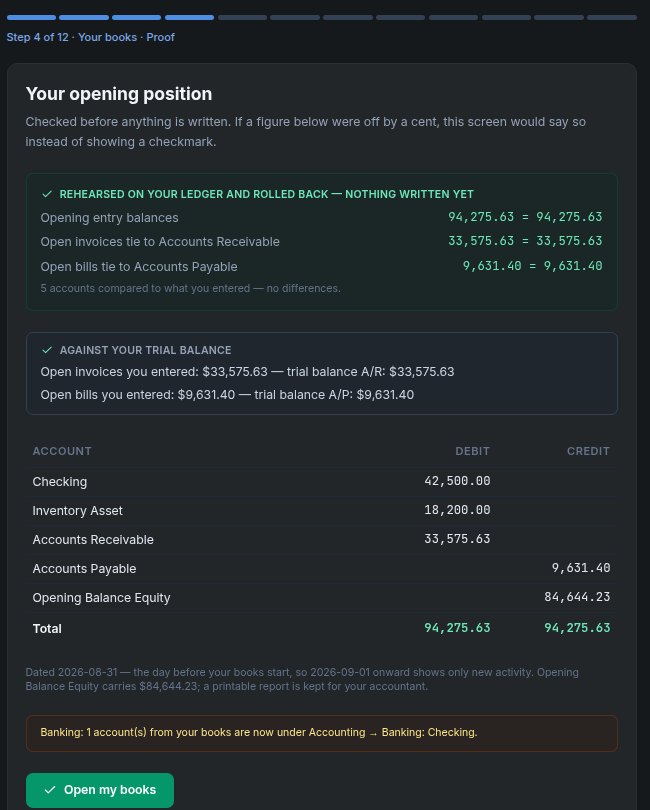
No old system? A few short screens and your last bank statement
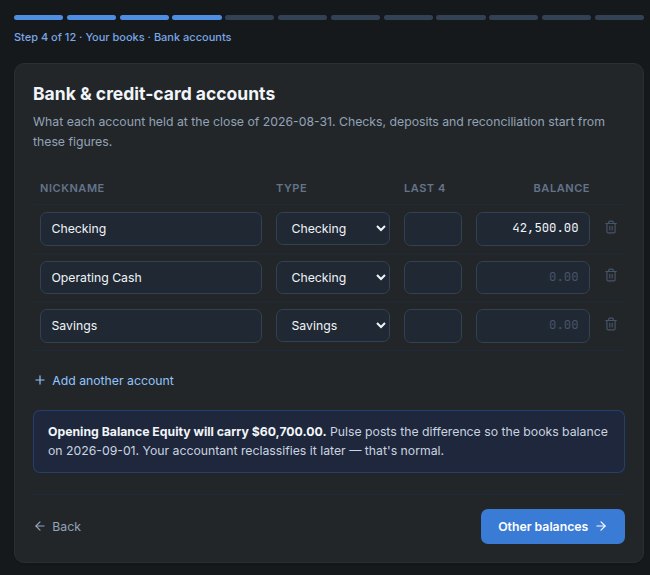
Pick the day your Pulse books start. Enter what each bank and card account held the night before, anything else on the books, checks that hadn’t cleared, and what customers still owe you and you still owe. A new customer or vendor name on an invoice creates the record for you.
Pulse puts the difference in Opening Balance Equity, tells you so in plain English, and your accountant reclassifies it later. That’s the normal way to open a set of books.
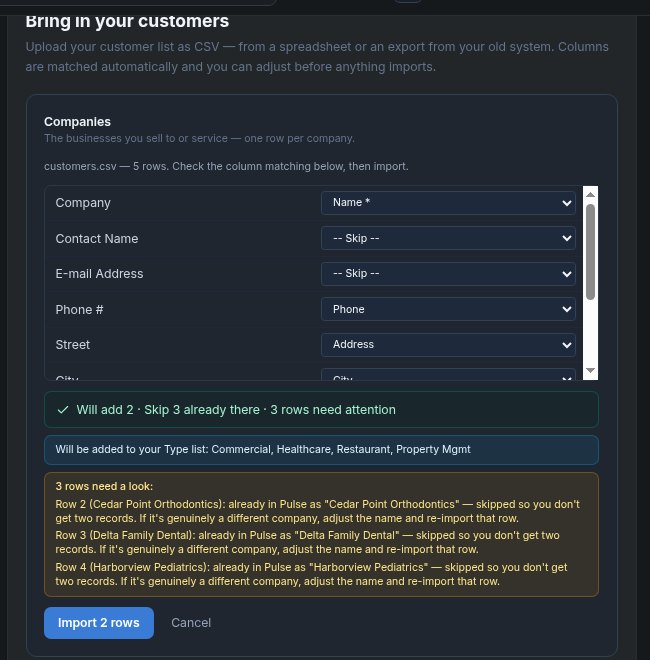
Spreadsheets in, no duplicates, and an undo button
Upload a CSV or Excel export from your old CRM, or any customer list. Pulse matches the columns, and you check every one before anything imports. Companies already in Pulse, such as the customers your books just brought across, are recognised and skipped, so you never get two of the same record.
- A preview says exactly what will be added and what will be skipped, and why
- New values, like a customer type you use, are added to your lists as they come in
- An import can be undone from the same screen
Finish setup with a quote your customer would actually get
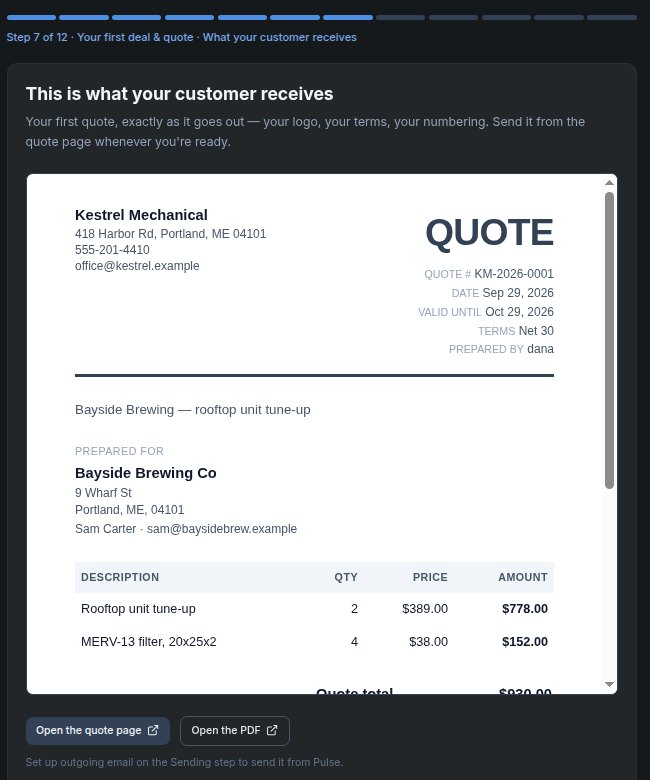
The wizard builds your first deal and its quote from the customers and products you just brought in. Then it shows you the quote exactly as it goes out: your company details, your numbering, your terms. Seeing it is how you know setup worked.
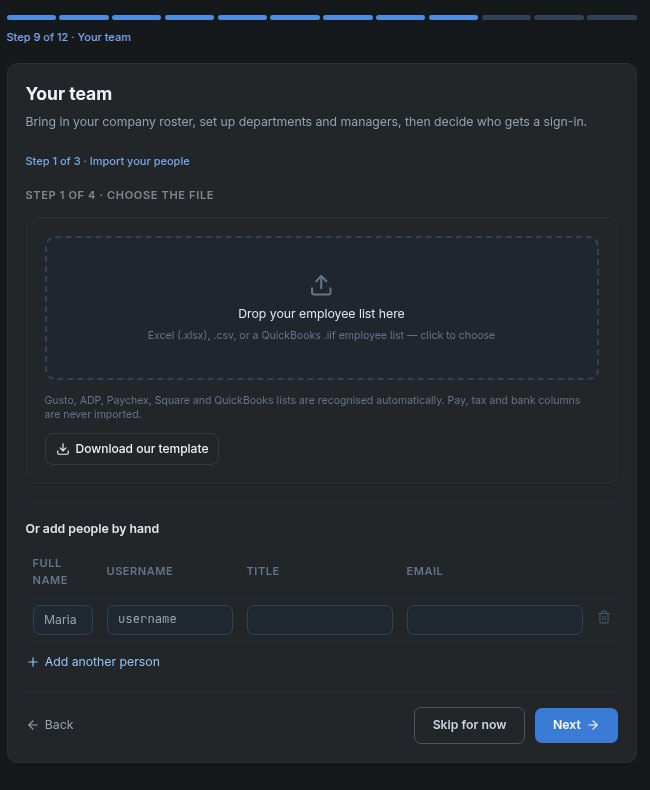
Bring in the roster, and keep the payroll out
Upload your employee list, set up departments and managers, and choose who gets a sign-in. Lists exported from Gusto, ADP, Paychex, Square and QuickBooks are recognised automatically.
- Pay rates, social security numbers, tax and bank columns are never imported. They’re filtered out twice, even if you map them.
- Named users are never capped or billed, so add the part-timer and the bookkeeper